

Why Remote Desktop Tools Are Indispensable for Modern Workflows
Why Remote Desktop Tools Are Indispensable for Modern Workflows
Almost everyone has faced that last-minute panic. You’re away from your desk, stuck on your phone, and a critical task waits on your home or office PC. Maybe you left a key work file unsaved. Maybe a software update froze your system. Perhaps a streaming app crashed mid-session, a personal server needs a quick restart, you need to move files last minute, or a presentation has to go live immediately.
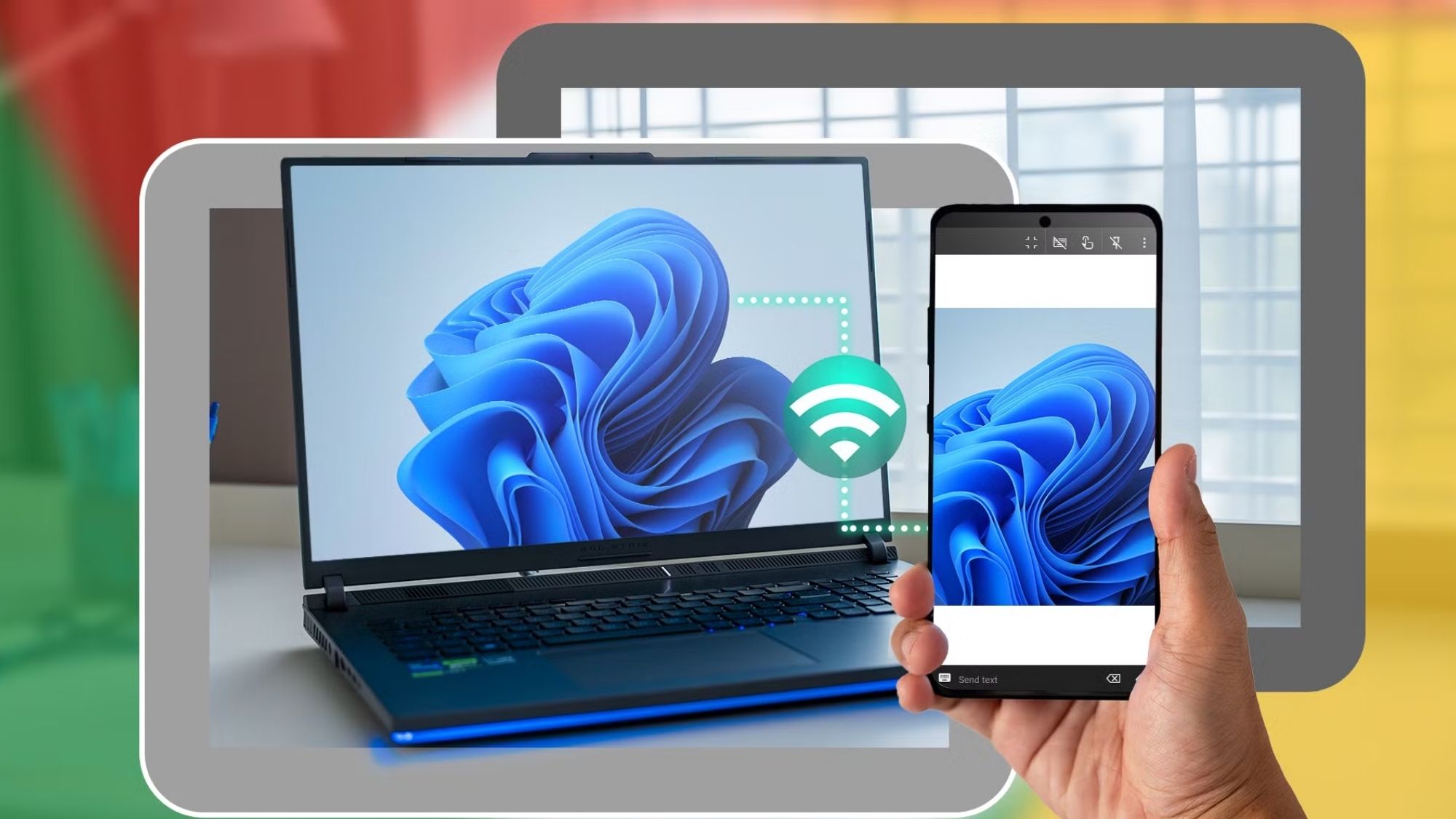
This is where reliable remote desktop apps shine. They turn your smartphone into a portable command center for Windows and Mac desktops, letting you resolve issues and access files from anywhere. But not all remote tools deliver a usable mobile experience.
Plenty of options suffer from crippling lag, hide core functionality behind expensive subscriptions, or pack enterprise-level complexity that overwhelms casual users. The best ones strike a smart balance: stable connections, intuitive mobile controls, and practical features tailored for phone-sized screens.
For this 2026 guide, we curated only active, reputable apps available on the Apple App Store and Google Play Store. We evaluated each tool based on real-world connection stability, mobile usability, remote responsiveness, file transfer capabilities, cross-device compatibility, built-in security, and clear pricing structures. Some prioritize simplicity for everyday users. Others deliver professional-grade power for IT work. These are the tools that consistently perform reliably.
TeamViewer Remote (iOS & Android)
Availability: iPhone, Android
Pricing: Free for personal use; paid subscription plans for business applications
Real-World Performance Breakdown
TeamViewer has long stood as the most recognizable name in remote desktop software, and for good reason. Its setup process is incredibly straightforward, even for users with no technical background. Install the desktop client, log into your mobile app, and you’ll establish a secure remote connection within minutes — firewalls and different network setups rarely block its access.
It covers every core remote function users actually need: full desktop control, two-way file transfers, multi-monitor viewing, remote system reboots, cross-device clipboard syncing, and flexible remote support sessions. Its global server network ensures stable connections across regions, making it dependable even for cross-border remote access.
Accessibility is its biggest strength. Most people can navigate its mobile interface and troubleshoot basic desktop issues without following tutorials. The downside? Its free personal tier aggressively scans for commercial usage. Casual home users often face random session limits and false positive restrictions if the algorithm suspects professional use. Business-grade subscriptions also carry a noticeably high price tag compared to competitors.
Pros
Industry-leading cross-platform compatibility across all major operating systems
Fast, hassle-free setup with minimal network configuration
Consistently stable remote connections across diverse networks
Polished, user-friendly mobile interface optimized for phones
Robust, reliable file transfer and remote collaboration tools
Cons
Free personal version frequently triggers unfair commercial-use restrictions
Business subscription costs sit higher than most alternatives
Unpredictable session interruptions for casual home users
Best For
Users seeking an all-in-one remote desktop solution with minimal setup and maximum reliability.
Microsoft Remote Desktop (iOS & Android)
Availability: iPhone, Android
Pricing: 100% free
Real-World Performance Breakdown
Microsoft Remote Desktop is the best no-cost choice for anyone fully invested in the Windows ecosystem. It taps directly into Windows’ native Remote Desktop Protocol (RDP), delivering incredibly snappy performance on strong Wi-Fi or cellular connections. Text renders crisply, virtual mouse inputs feel responsive, and multitasking translates surprisingly well to larger phone and tablet screens.
It excels for daily office tasks, basic system administration, internal network access, and general productivity workflows. Its built-in security architecture is robust, backed by Microsoft’s enterprise-grade protection standards.
The tradeoff is accessibility. This is not a plug-and-play tool. Users need a Windows Pro edition system, manual router adjustments, customized network permissions, and enabled remote desktop settings to get it working. That technical barrier keeps it out of reach for casual users who just want quick, spontaneous remote access.
Pros
Completely free with no hidden fees or paywalled core features
Seamless, native integration with Windows operating systems
Ultra-responsive remote control during stable network conditions
Enterprise-level security protocols and encryption
Perfectly optimized for productivity-focused remote work
Cons
Intimidating manual setup for non-technical users
Requires Windows Pro; unsupported on standard Windows Home editions
Far less beginner-friendly than consumer-focused remote tools
Best For
Windows-centric users comfortable adjusting system and network settings manually.

AnyDesk (iOS & Android)
Availability: iPhone, Android
Pricing: Free for personal use; paid business subscriptions available
Real-World Performance Breakdown
AnyDesk built its entire reputation on speed — and it lives up to that promise. The app is extremely lightweight, so it runs smoothly even on older PCs and weaker network connections. Cursor movement, page scrolling, and real-time interactions feel noticeably more fluid than competing tools during mobile remote sessions.
Its mobile interface is clean and uncluttered, free of the bloated menus that weigh down enterprise remote software. It’s ideal for quick troubleshooting, low-latency remote control, older device access, and fast, lightweight remote sessions.
Where it falls short is polish and versatility. While its core remote control performance is top-tier, it lacks the full suite of collaboration and advanced workflow tools that make TeamViewer feel comprehensive. Its premium business plans also add up quickly for teams needing multi-device access.
Pros
Industry-leading low-latency remote performance
Ultra-lightweight software with minimal system resource usage
Excellent stability on weak or congested bandwidth
Streamlined, intuitive mobile interface
Fully functional free tier for personal use
Cons
Limited built-in collaboration and workflow features
Business subscription costs scale up quickly
Advanced configuration tools remain technical for new users
Best For
Users who prioritize fast, lag-free remote control above all other features.
Chrome Remote Desktop (iOS & Android)
Availability: iPhone, Android
Pricing: Completely free
Real-World Performance Breakdown
Chrome Remote Desktop is the simplest tool in this lineup — and that’s its greatest strength. The setup process could not be more approachable. Install the Chrome browser, add the official remote extension, log into your Google account on the mobile app, and connect instantly.
This zero-fuss workflow makes it perfect for casual users who only need occasional remote access. It ties seamlessly into existing Google account credentials, eliminating complicated login and pairing steps. Connections stay stable for basic tasks like file checks, quick edits, and simple system monitoring.
Simplicity comes with tradeoffs, though. It lacks depth compared to premium alternatives. Advanced file management tools, collaborative features, and granular remote controls are almost entirely absent. It works great for quick, sporadic use but fails for heavy professional workflows.
Pros
100% free with no usage limits or mandatory upgrades
The easiest setup process of any remote desktop app
Smooth integration with existing Google accounts
Dependable, stable connections for basic remote tasks
Perfectly tailored for casual, infrequent remote access
Cons
Virtually no advanced professional features
Minimal, stripped-back interface with no customization
Unsuitable for complex remote workflows or IT support
Best For
Casual users who want free, simple remote PC access with no subscriptions or technical work.
Splashtop Personal (iOS & Android)
Availability: iPhone, Android
Pricing: Free for local network access; paid subscription required for internet remote access(App Store)
Real-World Performance Breakdown
Splashtop stands apart from competitors with its sharp focus on multimedia performance. While most remote tools prioritize basic control and file access, Splashtop optimizes heavily for video playback, audio streaming, and high-frame-rate visual interactions. The difference is immediately obvious when streaming media or remotely running graphic-heavy creative software.
Its mobile gesture controls are also finely tuned for phone screens, making navigation feel natural and responsive during extended remote sessions.
Its pricing structure is the biggest hurdle for new users. The free version only works on your local Wi-Fi network. Any off-site, internet-based remote access requires a paid subscription, which confuses many first-time users expecting fully free functionality.
Pros
Class-leading multimedia streaming and video playback performance
Ultra-smooth high-frame-rate remote interactions
Precise, intuitive mobile gesture controls
Exceptional handling of visually intensive desktop apps
Polished, consistent mobile user experience
Cons
Free tier limited exclusively to local network connections
Confusing tiered pricing structure for new users
Lacks robust features for enterprise team collaboration
Best For
Users remotely accessing media-heavy, graphic-intensive desktop applications.
Final Verdict
TeamViewer Remote remains the best all-around remote desktop app for most users in 2026. It balances fast setup, universal cross-platform compatibility, consistent connection stability, polished mobile usability, and flexible functionality better than any competing tool.
Best Overall Remote Desktop App: TeamViewer Remote
Best Free Windows-Focused Solution: Microsoft Remote Desktop
Best Low-Latency Performance: AnyDesk
Best Beginner-Friendly Free Tool: Chrome Remote Desktop
Best for Multimedia & Graphic Remote Access: Splashtop Personal
The Hidden Factors That Make or Break Remote Desktop Performance
Most people assume app quality alone determines how smooth remote access feels. In reality, three external factors impact performance far more than software features: the host PC’s upload speed, local Wi-Fi stability, and the desktop’s hardware processing power.
No matter how optimized a remote app is, it can’t fix slow upstream bandwidth, congested public Wi-Fi, or aging desktop hardware that struggles to encode and stream screen footage. This is why lightweight tools like AnyDesk and media-optimized platforms like Splashtop feel far smoother on weak networks — their core code is built to adapt to limited bandwidth.
It’s also important to distinguish between true remote desktop control, cloud gaming streaming, and basic file-access tools. Top-tier remote apps don’t just mirror screens or transfer files. They balance responsiveness, long-term connection stability, and practical usability on small mobile displays.
Smartphones now pack enough power to act as portable remote workstations in 2026. Pairing them with the right remote desktop software turns any quick mobile check-in into full desktop access — anywhere, anytime.