

From Wobble to Wow: Best Apps to Practice Digital Lettering and Calligraphy on iPad
Anyone who has tried learning calligraphy on an iPad knows the feeling instantly. You pick up the Apple Pencil, open a blank canvas, draw your first elegant downstroke… and the stylus skates across the glass like it’s on ice.
That’s the biggest shock for traditional calligraphers moving into digital work. Real nibs bite into paper fibers. Glass doesn’t. There’s no drag, no resistance, none of that subtle physical feedback your hand depends on when shaping delicate hairlines or thick Gothic strokes.
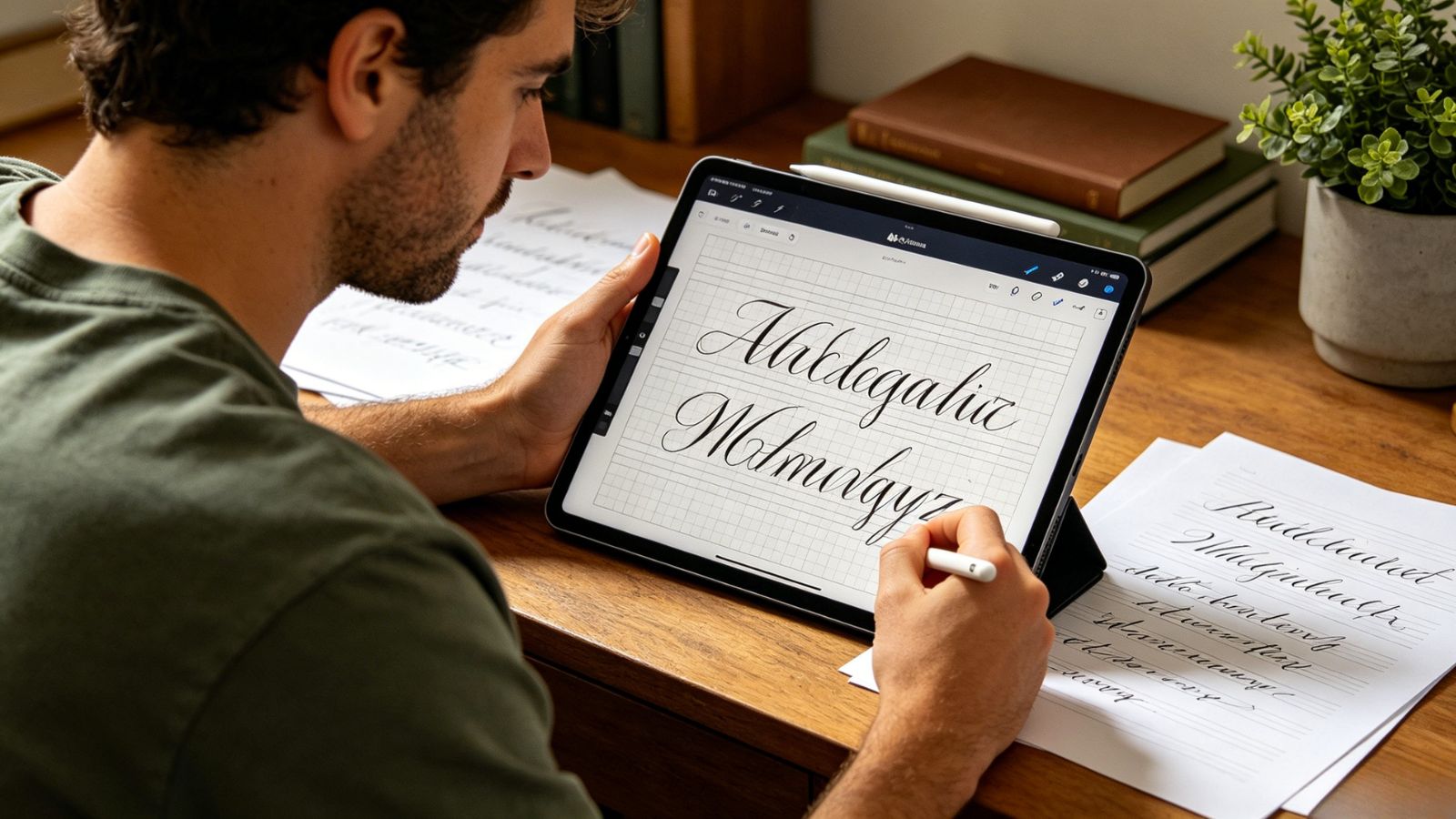
The surprising part? Modern iPad apps have gotten incredibly good at compensating for that. Between pressure-sensitive brush engines, stroke stabilization, tilt tracking, and custom calligraphy grids, the iPad has quietly evolved into a genuinely powerful practice tool for lettering artists. Some apps feel like full-blown digital studios. Others focus purely on the rhythm of writing itself. After spending time with the major options, a few stood out immediately — not because they had the flashiest marketing, but because they actually made digital calligraphy feel natural.
Here are the iPad apps that genuinely earn a place in a calligrapher’s workflow.
Procreate (iPadOS)
Why so many calligraphers end up here
Procreate wasn’t originally built as a calligraphy app. It’s a digital art powerhouse first.
And yet, somehow, it became one of the best lettering tools on the iPad.
The magic lives inside its brush engine — specifically the stabilization settings. Features like Streamline and Stabilization smooth out the tiny hand tremors that become painfully obvious on a slick glass screen. Instead of shaky curves and uneven swells, your strokes suddenly feel controlled, fluid, almost effortless.
It’s the closest thing to “adding friction” digitally without physically changing the screen texture.
The customization goes absurdly deep too. You can tweak pressure response curves, taper behavior, tilt sensitivity, stroke grain, ink flow — basically every tiny variable that affects how lettering feels under your hand. Once dialed in properly, the Apple Pencil starts behaving surprisingly close to a flexible nib.
That flexibility is why so many professional calligraphers stick with it long term. Modern script, blackletter, flourishing, brush lettering — Procreate adapts to all of it.
Pricing
One-time purchase: $12.99
No subscription required
Pros
Exceptional stroke stabilization for smooth lettering
Massive brush customization options
Huge online community with downloadable brushes and grids
Fast, responsive performance even on large canvases
Cons
No built-in traditional slant guides by default
Can feel overwhelming for beginners initially
Calligraphy Master: Cursive App (iPadOS)
Best for structured practice
Some apps feel like open creative playgrounds. Calligraphy Master feels more like a digital workbook designed by someone who genuinely studies historical scripts.
That distinction matters.
Instead of throwing you onto a blank page immediately, the app focuses heavily on guided repetition and muscle memory. Copperplate slants, Spencerian grids, Gothic spacing — it generates proper practice structures automatically, which removes a surprising amount of setup frustration.
One especially useful feature is the tracing system. You can overlay faint templates directly onto the writing surface and practice by tracing over classic scripts repeatedly. It sounds basic, but repetition is exactly how traditional penmanship training worked for centuries.
The app leans more educational than artistic, and honestly, that’s probably why it succeeds.
Pricing
Free version available
Pro plans: $4.99/month, $14.99/year, or $9.99 lifetime
Pros
Excellent traditional script guides and slant grids
Great for building consistent letterform muscle memory
Includes classic text samples for practice
Allows printable worksheet exports
Cons
Brush realism feels limited compared to illustration apps
Interface looks functional rather than polished
Zen Brush 3 (iPadOS)
A completely different kind of calligraphy experience
Zen Brush 3 isn’t trying to imitate Western calligraphy. It’s doing something entirely different.
The app focuses on East Asian ink brush work, and the physics engine is honestly beautiful to watch. Ink pools, dries, spreads, and fractures in ways that feel remarkably organic. Fast strokes create dry-brush texture. Slow movements leave heavy, saturated pools of black ink that bleed naturally into the paper grain.
It doesn’t just widen a digital line when you press harder. It simulates the behavior of an actual brush.
That subtle difference changes everything.
Writing in Zen Brush feels less like technical drafting and more like physical painting. There’s rhythm to it. Momentum. Weight.
If your goal is meditative brush calligraphy or expressive ink work, this app is hard to beat.
Pricing
One-time purchase: $4.99
Pros
Gorgeous ink and brush simulation
Excellent Apple Pencil tilt and pressure response
Beautiful paper textures and backgrounds
Highly immersive writing experience
Cons
Not ideal for precise Western calligraphy styles
Minimal layer editing tools
Adobe Fresco (iPadOS)
Best for designers who also letter
Adobe Fresco sits somewhere between illustration software and production design tool.
For pure handwriting practice, it’s probably overkill. But for professional lettering artists creating logos, branding assets, or scalable client work? Fresco becomes extremely compelling.
Its vector brushes are the standout feature here. Your strokes stay perfectly sharp no matter how far you zoom in, which makes the app incredibly useful for commercial design projects where clean scaling matters.
The smoothing engine is also excellent. Flourishes that would normally wobble slightly on glass get corrected in real time while you write, creating polished curves without feeling overly artificial.
And because it lives inside Adobe’s ecosystem, moving projects between iPad and desktop workflows feels seamless.
Pricing
Free core version available
Additional Creative Cloud features optional
Pros
Crisp vector lettering with infinite scalability
Strong smoothing and pressure handling
Excellent cloud syncing with desktop workflows
Great for professional design integration
Cons
Interface has a steeper learning curve
Vector lines can feel too “perfect” for organic ink styles
Tayasui Calligraphy (iPadOS)
The minimalist favorite
Tayasui Calligraphy feels refreshingly quiet.
No giant toolbars. No endless settings menus. No complicated layer systems demanding your attention. You open the app and start writing almost immediately.
That simplicity is the entire appeal.
The app focuses on just a handful of highly refined tools: fountain pens, broad-edge nibs, brush pens, angled markers. And honestly? That restraint works in its favor. Instead of drowning you in options, it concentrates on making the actual writing experience feel satisfying.
The broad-edge simulation is particularly strong. Hold the Apple Pencil at a steady angle and the app naturally creates the thick-and-thin stroke variation you’d expect from a real italic nib.
Even the audio design deserves credit. There’s subtle scratchy pen-on-paper feedback while writing that sounds strangely convincing through headphones.
Tiny detail. Big difference.
Pricing
One-time purchase: $2.99
Pros
Extremely clean, distraction-free interface
Realistic broad-edge pen behavior
Great sound design and ink blending effects
Fast and easy to jump into daily practice sessions
Cons
Limited advanced editing features
Fewer built-in guides and worksheets
Final Verdict
If you want the most complete, flexible, and professional digital calligraphy experience on the iPad, Procreate still leads the pack. The stabilization tools alone solve one of the biggest frustrations of lettering on glass, and the brush engine gives experienced calligraphers an incredible amount of control over how every stroke behaves.
That said, the “best” app really depends on how you practice.
If you love structured drills and historical scripts, Calligraphy Master makes practice feel focused and disciplined. If you want expressive brush work that feels almost meditative, Zen Brush 3 is fantastic. And if you prefer a quiet, distraction-free writing space, Tayasui Calligraphy has a charm that’s hard to explain until you spend time with it.
Because at the end of the day, digital calligraphy isn’t really about perfectly copying ink on paper. It’s about removing enough friction — literal and creative — that your hand can finally relax and let the letters flow.